Free Pet Holiday Backgrounds for Zoom Calls
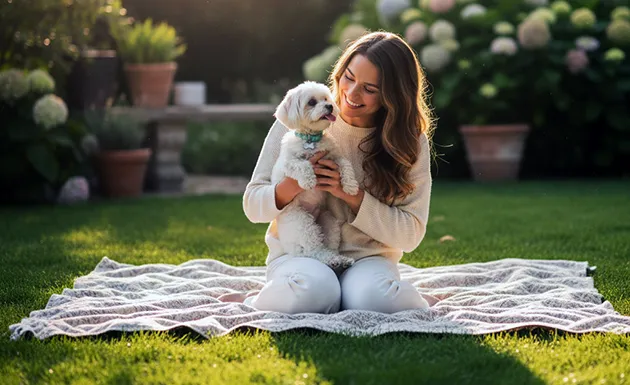
Mix free kitten and holiday scenes with shelter-pet downloads for a festive Zoom look this season.
Yes, you can dress up Zoom calls with free pet holiday backgrounds. The Hallmark Channel collection pairs holiday scenes with kitten scenes, and a shelter-pet pack adds more pet options. A virtual background replaces what callers see behind you.
Downloads work as image files you upload in Zoom settings.
Verification note: Program terms and availability can change. This page was checked against linked sources on November 18, 2026.
How to build a pet-holiday pairing
Hallmark Channel provides free downloadable Virtual Holiday Backgrounds tied to its Countdown to Christmas collection. You can use one for holiday parties and family check-ins. The collection is made for video-call backdrops, so the framing fits a person in the foreground.
For the pet side, Hallmark Channel also provides free Virtual Kitten Bowl Backgrounds featuring kittens and cats. Switch between a Christmas scene and a kitten scene for different calls. The pairing gives you both parts of a pet-holiday look without editing photos.
Where can you find shelter-pet backgrounds?
APA Adoption Center offers a free pack of 12 downloadable Zoom backgrounds featuring shelter pets. The pack suits supporters and meeting users who want rescue animals behind them. Twelve choices make it easy to rotate looks through the season.
Pick a calm image with clear space in the middle. Your face stays readable when the pet sits to one side. Save two or three favorites so you have a backup if one looks busy on camera.
How do you add a download in Zoom?
Zoom Support limits custom uploads to 24-bit PNG or JPG/JPEG up to 15MB, as explained in its Virtual Background upload guide. Oversized files fail, so correct sizing is the practical fix. Check the file type before you upload.
Use the Virtual Background controls to add a file.
- Open Zoom settings and choose Virtual Background.
- Select the plus button and pick your saved JPG or PNG.
- Apply the image and preview your framing.
What should you check before joining?
Test your background before guests arrive. Sit facing a window or lamp so your outline stays sharp. Close clutter behind you in case you turn the background off.
Keep each downloaded JPG or PNG under 15MB. Large holiday photos often need resizing or re-saving. A smaller file uploads faster and still looks clear on most calls.